
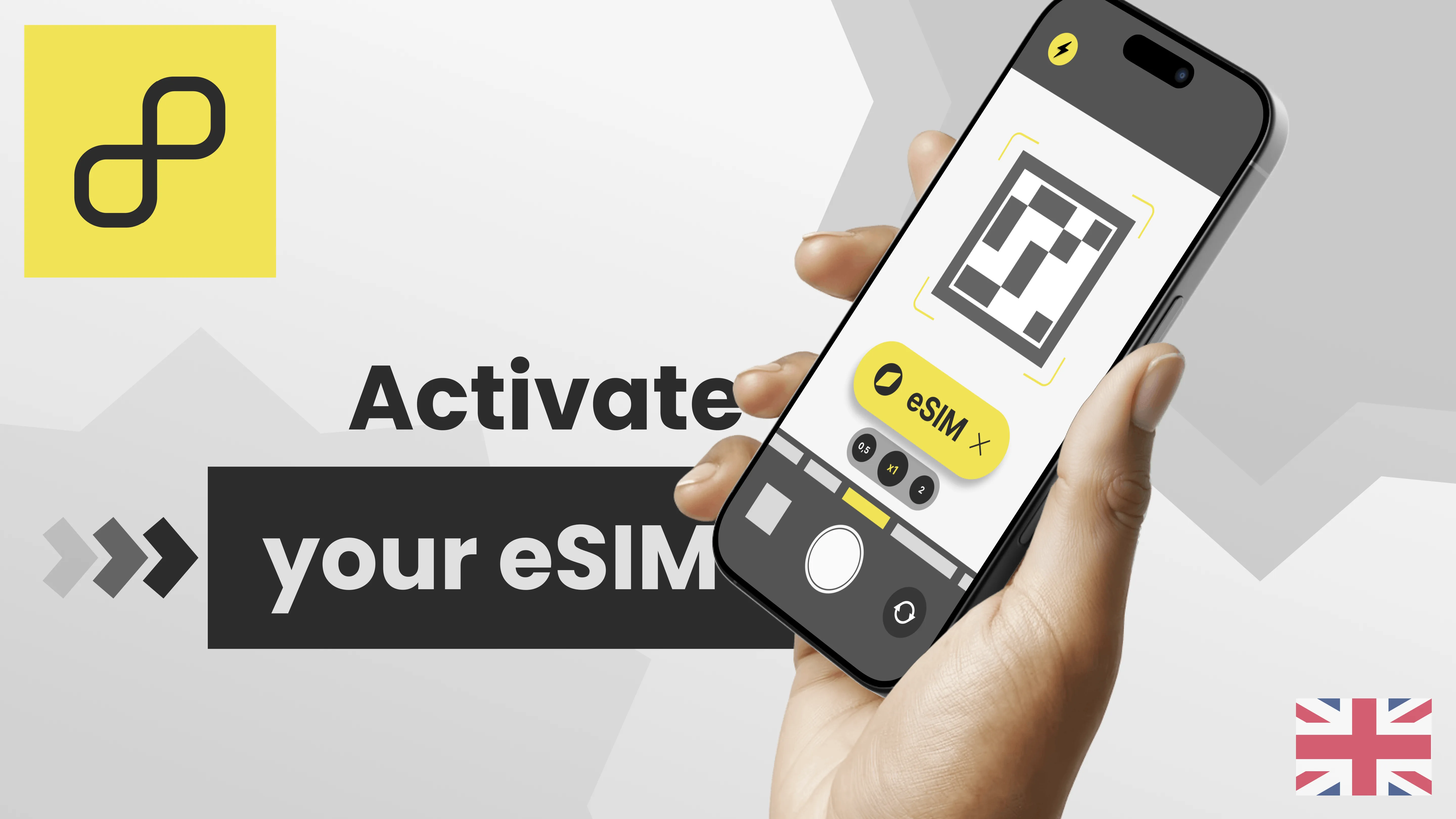
Just received your iPhone with eSIM purchased on Amazon from Fonestore? 🎉 Congratulations! In this complete guide, we’ll walk you step-by-step through how to activate your eSIM quickly and easily. Every Fonestore iPhone is fully tested, unlocked, and 100% compatible with eSIM technology — ready to use with no physical SIM card required.
UNDERSTANDING ESIM: THREE WAYS TO ACTIVATE IT
An eSIM is a digital SIM card built directly into your iPhone. It lets you set up your mobile plan without inserting a physical SIM card. It’s more convenient, more secure, and environmentally friendly 🌿. On your Fonestore iPhone, you can activate it in three different ways:
- A) By scanning a QR code provided by your carrier.
- B) By entering activation details manually (SM-DP+ address, activation code, etc.).
- C) By transferring your eSIM and data from another iPhone.
A) ACTIVATION VIA QR CODE
This is the fastest and most common method. Most carriers (Orange, SFR, Bouygues, Free, etc.) provide a QR code to instantly activate your eSIM.
- Step 1: Request the QR code from your mobile carrier.
- Step 2: On your iPhone, go to Settings → Cellular → Add eSIM → Use QR Code.
- Step 3: Scan the QR code with your camera.
- Step 4: Give your line a name (e.g., “Work” or “Personal”) and select the main line for calls and data.
💡 Fonestore Tip: If you own an iPhone 14 or newer (U.S. model without a SIM tray), this is the only available activation method. Once scanned, your eSIM will be ready within seconds.
B) MANUAL ACTIVATION (WITHOUT QR CODE)
If your carrier doesn’t provide a QR code, they can share the information you need to manually set up your eSIM. The process is simple and secure.
- SM-DP+ Address: for example,
smdp.orange.fr - Activation Code: an 8–16 digit code
- Confirmation Code: optional, depending on your carrier
Go to Settings → Cellular → Add eSIM → Enter Details Manually and fill in the required fields. Your eSIM will be active in just a few seconds.
C) TRANSFER YOUR ESIM AND DATA FROM ANOTHER IPHONE
If you already have an eSIM on another iPhone, you can easily transfer it to your new Fonestore iPhone — no QR code and no carrier contact needed.
- Step 1: Turn on both iPhones and enable Bluetooth.
- Step 2: During the setup of your new iPhone, select Transfer eSIM when prompted.
- Step 3: If the iPhone is already set up, go to Settings → Cellular → Add eSIM → Transfer from Nearby iPhone.
- Step 4: Follow the on-screen instructions until the transfer is complete.
⚙️ Requirements: Both iPhones must have iOS 16 or later, be unlocked, and connected to the Internet.
COMMON ISSUES AND SOLUTIONS
- ❌ “No eSIM detected”: Restart your iPhone and rescan the QR code.
- ⚠️ “Activation error”: Make sure your carrier supports eSIM and that your iPhone is unlocked.
- 📶 “No service”: Ensure your eSIM line is set as the primary line in Settings → Cellular.
YOUR FONESTORE IPHONE IS READY TO USE
All refurbished iPhones from Fonestore are carefully tested before shipping to guarantee full eSIM compatibility. When you purchase from Amazon, you benefit from:
- 🔍 eSIM functionality check before dispatch
- ⚙️ Updated iOS and unlocked device
- 📦 Fast 24/48h shipping with eco-friendly packaging
- 💬 Personalized support via email or WhatsApp for activation
ESIM FAQ
- Can I switch back to a physical SIM? → Yes, but you’ll need to request it from your carrier.
- Does eSIM work on an unlocked iPhone? → Absolutely! As long as your carrier supports eSIM technology.
- Can I transfer my eSIM to another iPhone? → Yes, either via automatic transfer (iOS 16+) or using your carrier’s original QR code.
Fonestore helps you switch to eSIM easily and securely. 📱 Discover our refurbished iPhones or contact us for assistance.